Inside Clide's Fleet Panel: Real-Time Visibility Across Every AI Session
 · · 5 min read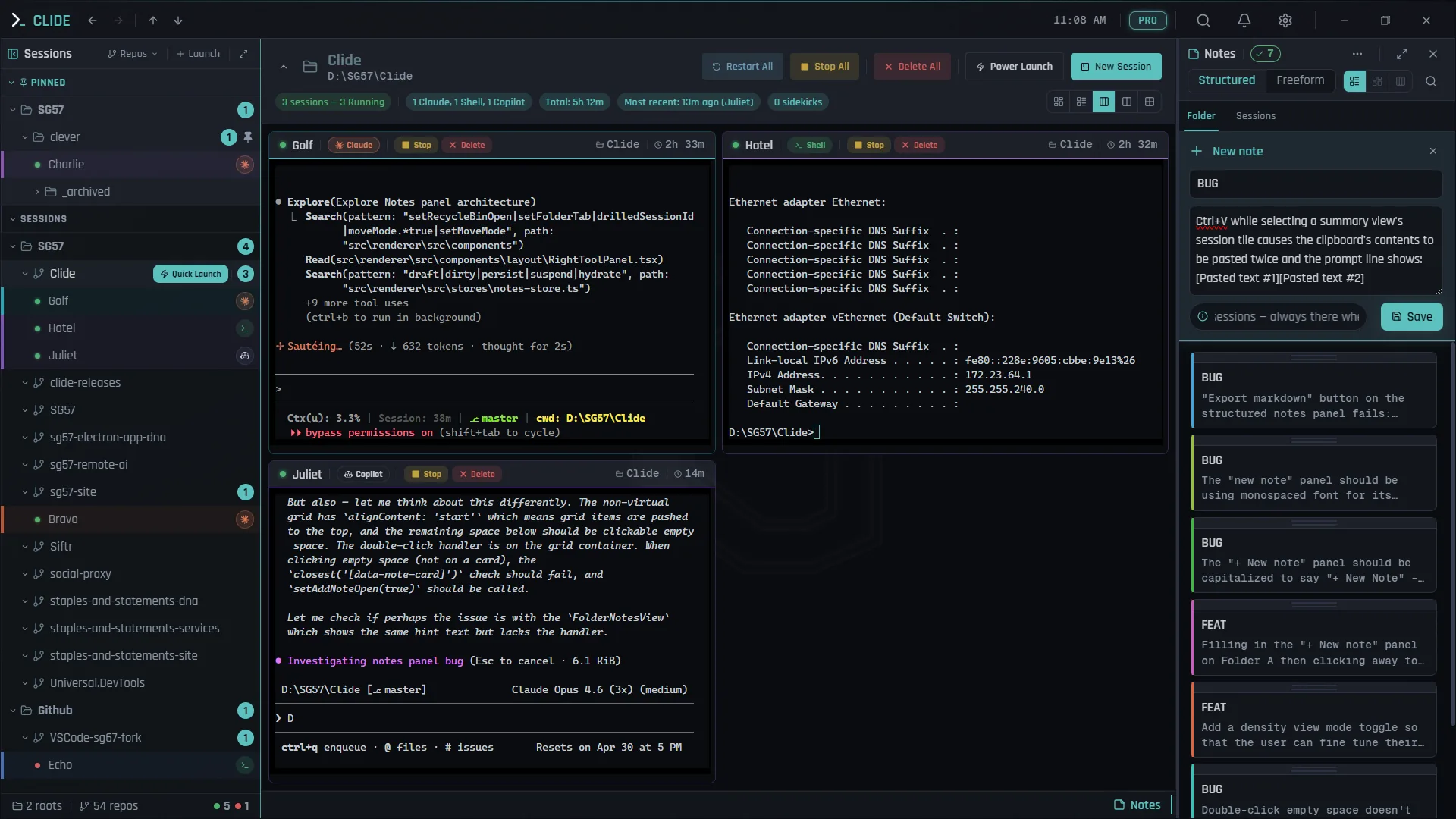
The Problem With Tabs
Tabbed terminal interfaces solve one problem — isolation — and create another: opacity.
When you have 8 Claude Code sessions running in Windows Terminal tabs, you have no idea what’s happening in any of them without clicking into each one. Tab 3 might be waiting on a y/n prompt. Tab 6 might have finished its task 10 minutes ago. Tab 2 might have hit an error and stalled. You won’t know unless you cycle through them manually — which defeats the entire purpose of running sessions in parallel.
This is the core problem that Clide’s Fleet Panel solves.
What the Fleet Panel Is
The Fleet Panel is a persistent sidebar that shows every active AI session at a glance — their status, their name, their current state — without requiring you to interact with or switch to each one individually.
It’s not a tab list. It’s a mission control view for your agent fleet.
Each session in the Fleet Panel shows:
- Session name — tagged with NATO alphabet identifiers (Alpha, Bravo, Charlie…) for unambiguous referencing
- Status indicator — live state of the session
- Project context — which codebase or task the session is working on
- Health indicators — visual signals for sessions that may need attention
The Four Session States
The Fleet Panel uses four status states that map to the actual lifecycle of an AI coding session:
| Status | Meaning | What You Should Do |
|---|---|---|
| Active | Agent is working — executing, writing, running commands | Nothing — let it run |
| Idle | Agent has paused, waiting for its next task | Assign the next task or close it |
| Blocked | Agent is waiting for input — it has a question or needs a decision | Go respond. This is the critical state. |
| Done | Agent has completed the assigned task | Review output, merge, or reassign |
Blocked is the state that matters most. This is where sessions stall without visibility: Claude Code asks “should I overwrite this file? (y/n)” and then sits there while you’re focused on something else. Without Fleet Panel, you’d never know until you happened to click that tab.
With Fleet Panel, a blocked session lights up. You see it, you respond, it unblocks, and the work continues.
Session Naming: NATO Alphabet
Sessions in Clide are named using the NATO phonetic alphabet — Alpha, Bravo, Charlie, Delta, Echo, Foxtrot, Golf, Hotel — rather than generic Tab 1 through Tab 8.
This is a small decision with compounding value. When you’re coordinating multiple sessions, you need to talk about them — to yourself, to your team, in notes. “Alpha is working on the auth module, Bravo is writing tests, Charlie is reviewing the migration” is coherent. “Tab 3 is working on… actually I lost track” is the alternative.
Named sessions also make it easier to assign tasks with intent. You know Alpha is your auth agent, Bravo is your test writer. You configure them with purpose and they maintain that identity through the session.
How Sessions Are Created
Manual Spawn
The simplest method: open the command palette (Ctrl+Shift+P) → “New Session” → pick your terminal type (Claude Code, GitHub Copilot CLI, etc.) → session spawns and appears in Fleet Panel.
Collection Batch Spawn
For scaling up to a full fleet: define a collection — a named configuration of multiple sessions with pre-set working directories, session names, and initial commands. Spawn the entire collection with one command.
This is the power-launch workflow. You open Clide in the morning, run your “morning fleet” collection, and have 6 sessions running with correct context in about 10 seconds. No manually opening terminals, navigating directories, launching agents one by one.
The Power-Launch Workflow
Here’s a realistic scenario: you’re working on a mid-size codebase and want to run parallel agents across different concerns.
Morning fleet collection might look like:
- Alpha —
cd /projects/api && claude→ auth module work - Bravo —
cd /projects/frontend && claude→ UI component sprint - Charlie —
cd /projects/api && claude→ writing tests for Alpha’s output - Delta —
cd /projects/infra && copilot→ Terraform review - Echo —
cd /projects/api && claude→ PR review and code comments
Launch the collection. All five sessions initialize simultaneously. Fleet Panel populates with their statuses. You assign tasks in order. You go to work.
Fleet vs Windows Terminal Tabs: Side by Side
| Capability | Windows Terminal Tabs | Clide Fleet Panel |
|---|---|---|
| See session status without clicking | ✗ | ✓ |
| Know which sessions are blocked | Only by clicking into each | Live indicator |
| Named sessions | Tab titles (manual) | Auto-named (NATO) |
| Batch spawn | ✗ | ✓ via Collections |
| Cross-session status at a glance | ✗ | ✓ |
| Health indicators | ✗ | ✓ |
| Integrated Monaco scratchpad | ✗ | ✓ |
| Concierge notifications | ✗ | ✓ |
Windows Terminal is fine for single sessions. For fleet-scale work, it has no state visibility. You’re flying blind.
Session State Machine
Understanding how sessions transition between states helps you work with Fleet Panel efficiently:
Spawned → Active → Idle → Active → ... → Blocked → Active → Done
                   ↑                        ↓
              (new task assigned)     (you respond)
A healthy long-running session cycles between Active and Idle as it completes subtasks and receives new ones. A blocked session interrupts that cycle and waits — Fleet Panel surfaces this immediately.
Real Workflow: 8 Agents, 20 Minutes In
You launch an 8-agent fleet to work on a feature sprint. Twenty minutes in, you look at Fleet Panel:
- Alpha → Done — finished the data model changes
- Bravo → Active — still working on the API routes
- Charlie → Blocked — waiting for a decision about error handling
- Delta → Done — tests written for the previous iteration
- Echo → Active — building UI components
- Foxtrot → Idle — finished its task, waiting for next assignment
- Golf → Active — writing documentation
- Hotel → Blocked — hit a merge conflict, needs guidance
In 3 seconds, you know: respond to Charlie and Hotel, assign Foxtrot a new task, let Alpha and Delta output sit for review. That’s your to-do list for the next 5 minutes.
Without Fleet Panel, you’d click through 8 tabs to discover this. Probably take 3–4 minutes. Probably miss something.
Download Clide at sg57.dev/clide — free, Windows desktop app. Fleet Panel, Concierge, Steward, Monaco scratchpad, collection batch spawn — all included, no subscription.